
After installing the MP2 Barcoding Plus Client application, some setup is required. Please follow the steps below to complete the setup process for the MP2 Barcoding Plus Client.
-
Start mp2 Barcoding Plus on the device, select Start - Programs - mp2 Barcoding Plus
The first time the application is started you may be prompted for an auth key. Please email the authorization key to support@bluedotsolutions.com for your authorization code. Include your Name, contact information, and Company Name. Once you receive this, you will be able to complete your configuration of MP2 Barcoding Plus.
- The Login dialog is displayed. Log in as the administrator with a User ID of admin and a password of 12345
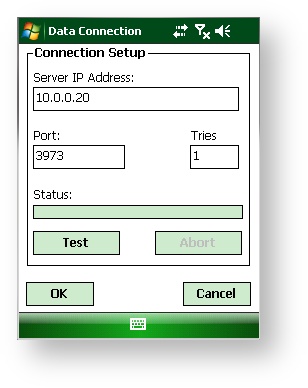
- Select Utilities - Data Connection and enter the IP Address if the server were mp2 Mobile Products is installed.
-
Select the test button.
If the test fails, check the following.
1. Make sure you have a network connection. This can be provided by a wireless network or Windows Mobile Device Center via a cradle connected to your PC.
2. Double check the IP address of the server.
3. Make sure Windows Firewall is either disabled on the server or a allow rule has been added for port 3973 - Tap OK to save the setting.
- On the Utilities menu, tap Setup - Database Version and select the type of mp2 database you're using. Tap OK
- If mp2 is Single Site, Warehouse, location and/or Purchasing Center. Tap the corresponding button to enter the default ID. For example, if mp2 is configured for a single site. Select Site - Single Site and enter the Site ID.
- Tap Done to complete the setup and return to the main menu.
- Tap Upload. This will pull mp2 user and security information to the device.
- Tap Utilities - Change Login and log in as an mp2 user.
The setup is now complete, repeat these steps for any extra devices that you may have.
Comments
0 comments
Please sign in to leave a comment.