
Windows Mobile Device Center is not starting on Windows 10
- Click on Start - Computer Management - Services & Applications - Services.
- Scroll down to “Windows Mobile-2003-based device connectivity”, right click and select Properties
- On the Log On tab, switch to “Local System account” and check “Allow service to interact with desktop” then click OK.
- Restart “Windows Mobile-2003-based device connectivity" (right click - Restart)
These settings will be reset when the PC is restarted. Please to the following to persist the settings.
- Run Powershell as Administrator
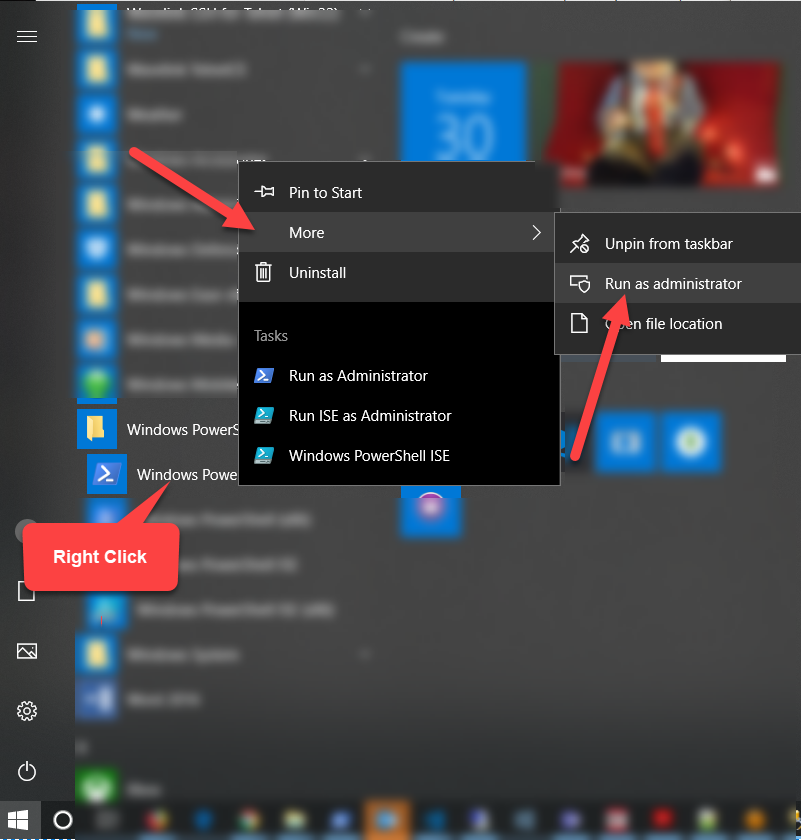
- Enter the following (copy and paste) and press enter.
REG ADD HKLM\SYSTEM\CurrentControlSet\Services\RapiMgr /v SvcHostSplitDisable /t REG_DWORD /d 1 /f
- Enter the following (copy and paste) and press enter.
REG ADD HKLM\SYSTEM\CurrentControlSet\Services\WcesComm /v SvcHostSplitDisable /t REG_DWORD /d 1 /f
Note: You still may have issues with Windows Mobile Device Center and Windows 10. If possible use a Windows Vista, 7 or 8 PC.
The device will not connect
The driver installation may not have completed successfully. If you think this may be the case, follow these steps:
- Keep your Mobile device connected to the computer.
- From the desktop, click Start, and then type devmgmt.msc in the Search programs and files box.
- In the Device Manager window, look under the Network adapters node for Microsoft Windows Mobile Remote Adapter. If this is not present, go to step 5. Otherwise, right-click Microsoft Windows Mobile Remote Adapter, and then select Uninstall.
- Look under the Mobile Devices node for Microsoft USB Sync. If this is not present, go to step 6. Otherwise, right-click Microsoft USB Sync, and select Uninstall.
- Disconnect and then reconnect your device. Your device driver will be reinstalled, and Windows Mobile Device Center will be launched.
For more information about connectivity-related problems, see the ActiveSync USB connection troubleshooting guide.
The device is disconnected when syncing large files
If you have problems syncing music, pictures, or other large files in which the connection suddenly closes, there may be an issue with a serial driver that is installed on the device. Unless you are using a VPN server or a firewall that is blocking your large files from synchronization, you may try switching your device into RNDIS mode to fix your large file sync problem. If your device has a "USB to PC" option, you might use this workaround:
- On the device, go to Settings and then Connections. Look for a USB to PC option.
- To enable RNDIS USB, select the Enable advanced network functionality checkbox in the USB to PC options, and then tap OK.
Note If this option is already selected, do not clear this selection or this workaround will not work.
- "Warm-boot" the device. To do this, hold down the power button and then press the reset button, or remove the battery.
- Turn on the device.
- When the device is restarted, dock the device and try again.
Note RNDIS takes a little while to connect. Please be patient and wait for the device to connect.
- If, after you follow the previous steps, you cannot connect at all, just switch back to serial USB to sync.
Comments
0 comments
Please sign in to leave a comment.